 Tooly
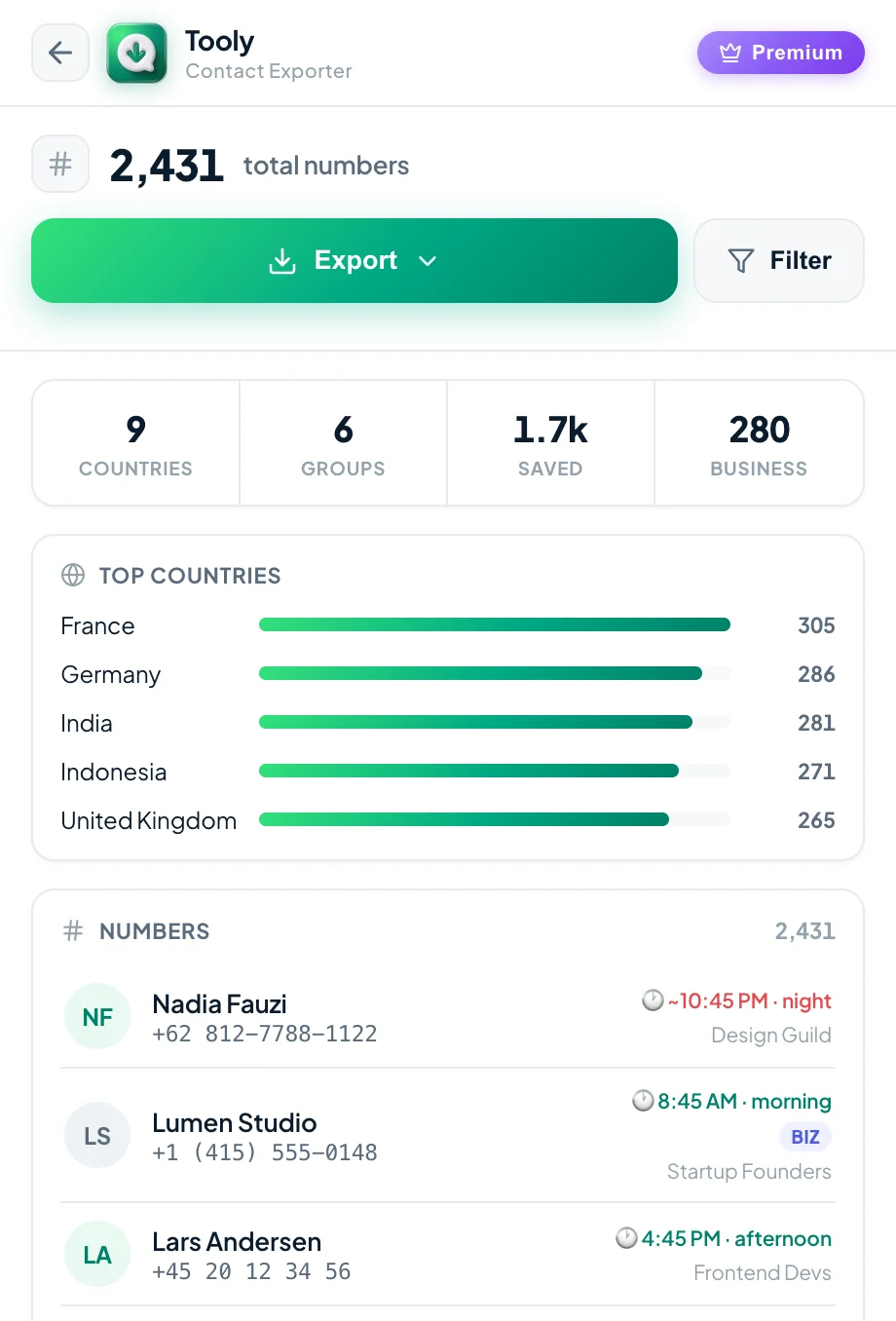
ToolyWhatsApp has no “export to spreadsheet” button — and the screen never even shows the numbers of the people you saved. Tooly reads your own signed-in WhatsApp Web session and writes an .xlsx where every row is one of your contacts. Before the how-to, the thing you actually came for: exactly what sits in each column of that file.
The column dictionary
Seventeen columns, in this order, on a sheet named Contacts. The first eleven describe the contact; the rest are flags and provenance.
| Field name | What it holds | Example | What it is good for |
|---|---|---|---|
| Saved Name | The name exactly as it sits in your own address book. | Ana Ribeiro |
The label of the row — you recognise the person without reading the number. |
| Public Name | The display name the person shows on WhatsApp themselves. | Ana · Studio |
Covers the gap when Saved Name is empty because you never saved them. |
| Phone | The number as plain digits, country code first, nothing else. | 5511987654321 |
The key of the sheet: what you match on, dedupe on and import with. |
| Formatted | The same number with the spacing WhatsApp itself renders. | +55 11 98765-4321 |
The readable version to paste into a message or a document. |
| Country Code | The international dial code on its own. | 55 |
Sorts and groups numerically, which a country name never does cleanly. |
| Country | The country that dial code resolves to, in your interface language. | Brazil |
Group or filter the sheet by region without decoding prefixes by hand. |
| Timezone | The UTC offset for that number’s country, marked “(varies)” where the country spans several zones; US and Canadian numbers get their area code’s zone. | UTC-3 (varies) |
Work out whether it is a civil hour there before you message someone far away. |
| Carrier (est.) | The network the number block was originally allocated to. An estimate, not a live lookup — number portability moves lines between carriers. | Vivo |
A rough read on the make-up of your list. Never treat it as authoritative. |
| Line Type | What the number parses as: Mobile, Landline, VoIP, Toll-free and so on. | Mobile |
Spot the landlines and service numbers sitting inside a WhatsApp list. |
| Language | The main language spoken where that dial code lives. | Portuguese |
Decide which language to write in before you reply. |
| Chat Link | The wa.me click-to-chat URL built from the number. | https://wa.me/5511987654321 |
Click the cell and the conversation opens — no copying numbers by hand. |
| Is My Contact | yes when the number is saved in your address book, empty when it is not. |
yes |
Find the people you talk to constantly and somehow never saved. |
| Is Business | yes for a WhatsApp Business account, empty for a regular one. |
yes |
Split shops and suppliers away from friends and family. |
| Labels | The WhatsApp Business labels on that chat, separated by semicolons. Only fills in when you are signed in to a Business account. | Client; Paid |
Carries the categories you already keep in WhatsApp straight into the sheet. |
| Is Admin | yes when the person is an admin of the group the row came from. |
yes |
Shows who runs a group you exported, without opening the group again. |
| Is Blocked | yes when you have that number blocked; empty otherwise. |
empty | Drop blocked numbers before you import the file anywhere else. |
| Groups / Source | The last column changes with the export. Deduplicated, it is Groups — every list the number turned up in. Straight, it is Source — the one list that row came from. | Book club; Neighbours |
Keeps the provenance of each row after several lists are merged into one sheet. |
Swipe the table sideways on a phone
What to do with each column
The columns exist for three jobs almost everyone does within a minute of opening the file.
-
Country · Country Code
Sort by country
Sort on Country Code and the list separates itself into home and abroad. A filter on Country then isolates one region at a time.
-
Phone
Dedupe the list
Because Phone is always the same plain-digit format, Excel’s Remove Duplicates pointed at that one column catches repeats that names never would.
-
Is Business · Is My Contact
Filter by account type
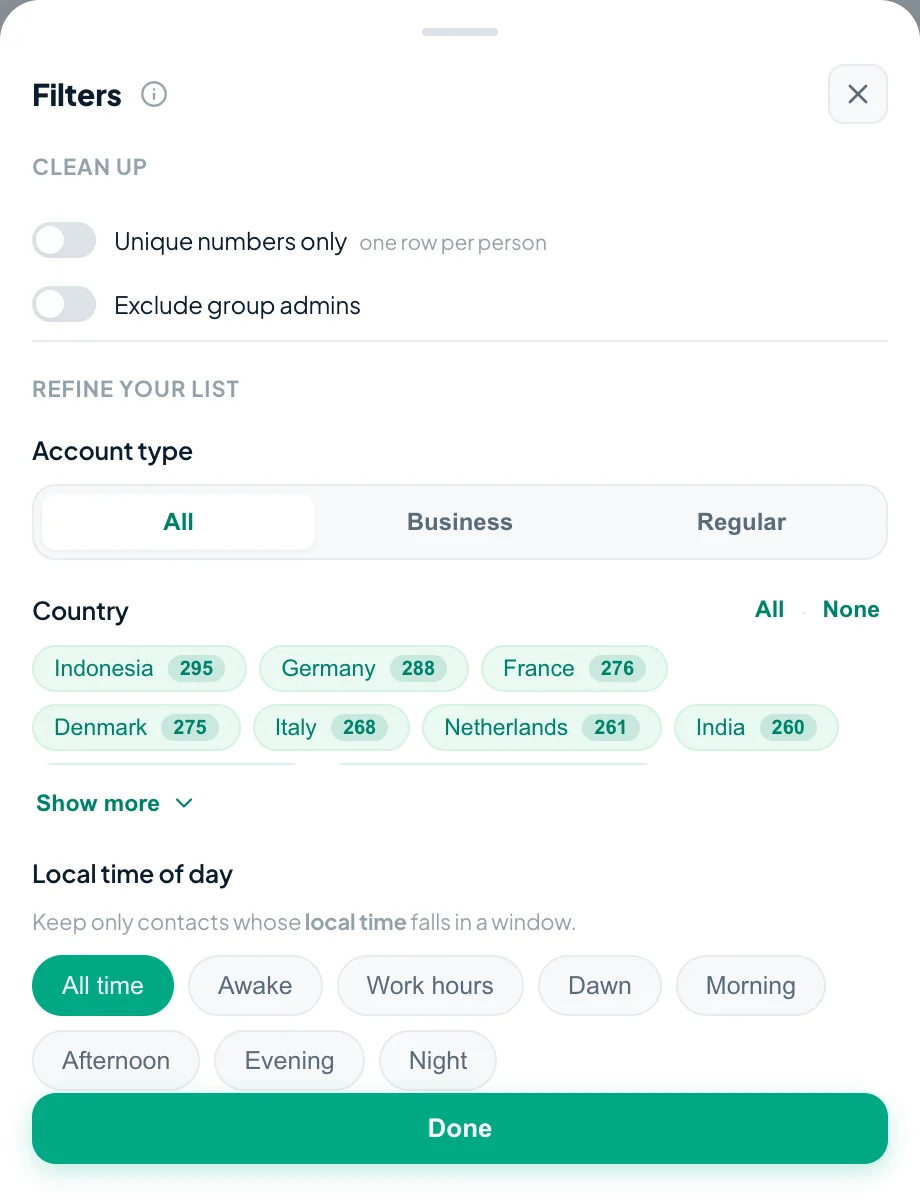
Keep only Is Business = yes to see the shops and suppliers, or only Is My Contact empty to find everyone still missing from your address book.
How to produce the file
Install to download is about two minutes, and no step asks for an account.
- Install Tooly from the Chrome Web Store, then open web.whatsapp.com and link your phone with the usual QR code.
- Click the Tooly icon in your toolbar to open the side panel, then hit Scan WhatsApp.
- Stay on the Contacts tab for the whole address book — Groups and Chats narrow it to a single list.
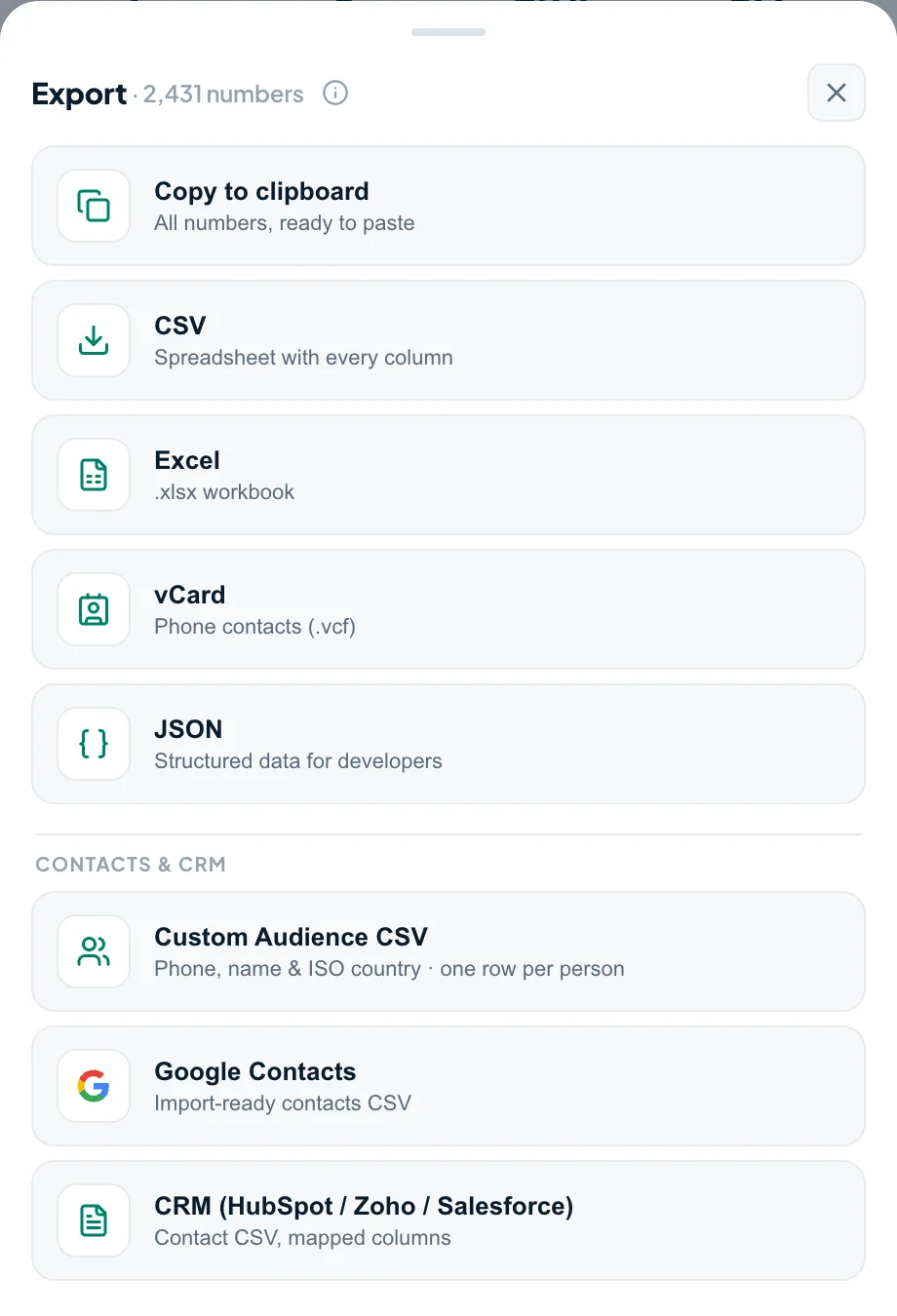
- Hit Export, choose Excel (.xlsx), and the workbook lands in your Downloads folder.
Excel, CSV or vCard?
- Excel (.xlsx) — the format of this guide. Keeps the columns apart and is where you sort, filter and count.
- CSV — the identical columns as plain text. This is what Google Contacts and most CRMs ask for on import.
- vCard (.vcf) — names and numbers become contact cards; the enrichment columns ride along in each card’s note. Opens straight into a phone or Mac address book.
Already have a contacts workbook and want it on a phone? The free Excel to VCF converter reads the .xlsx in your browser, phone numbers intact, and VCF to Excel does the reverse.
This is a guide for organising your own contact list — backing it up, tidying the address book, taking your numbers somewhere else.
Frequently asked questions
What columns are in the Excel file?
Saved Name, Public Name, Phone, Formatted, Country Code, Country, Timezone, Carrier (est.), Line Type, Language, Chat Link, Is My Contact, Is Business, Labels, Is Admin, Is Blocked, and a final Groups or Source column. Every row is one contact, on a sheet named Contacts.
Do the numbers come out in international format?
Yes, twice over. The Phone column is plain digits with the country code first and nothing else — the form Excel, Google Contacts and CRMs expect on import. The Formatted column carries the same number with the spacing WhatsApp itself renders, for reading.
Will Excel mangle my phone numbers?
No. Tooly writes every cell in the .xlsx as text, so a long number never turns into scientific notation and never loses a leading zero. Cells that begin with a formula character are escaped as text too.
Can I export WhatsApp contacts to Excel for free?
Yes. Tooly exports your full contact list to Excel, CSV and vCard for free, with no contact limit and no account required. Premium only adds extras like filters, one-click CRM presets and JSON.
Will my contacts be uploaded anywhere?
No. Tooly is read-only and runs entirely in your browser. Your contacts and the files you export are never uploaded to any server — everything happens on your device.
Can I export WhatsApp group members too?
Yes. You can export the members of your groups, individual chats, or your whole saved contact list — with the same columns.
Turn your contacts into a spreadsheet
One scan becomes a clean .xlsx you can sort, filter and share. Free, and entirely on your device.
Add Tooly to Chrome — free