 Tooly
ToolyA vCard is the format your phone's address book speaks. Export your WhatsApp contacts as a single .vcf file and every name and number drops into your iPhone, Android or Mac contacts at once — no spreadsheet, no manual typing. Tooly reads your own signed-in WhatsApp Web session and writes the file locally. This page covers the file itself: how to make it, where it lands, what each line means and how to fix the usual import surprises.
How to get the vCard
- Install Tooly from the Chrome Web Store — no sign-up.
- Open web.whatsapp.com, launch the Tooly side panel and click Scan WhatsApp.
- Choose the Contacts tab for your full list (or a single group or chat).
- Click Export and pick vCard — Phone contacts (.vcf). It downloads at once.
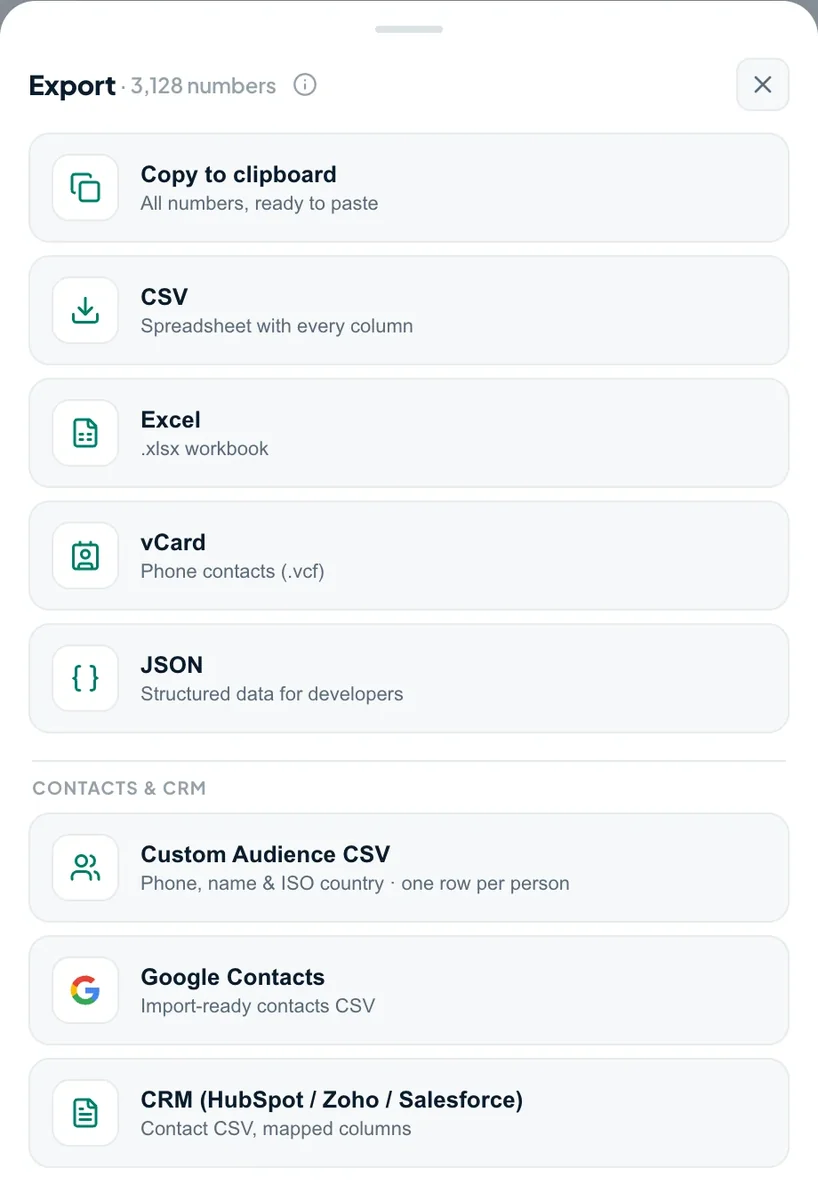
Where the .vcf file is saved
Nothing is uploaded. The file goes wherever Chrome saves downloads: your Downloads folder, unless you picked another location in Chrome's settings. Type chrome://downloads in the address bar to find it. The name begins with tooly-whatsapp-, then the list you exported, the contact count and the date, so don't look for "contacts.vcf". Deleted it? Tooly's Export history keeps your recent exports on this computer and can download the same file again.
Tooly runs in Chrome on a computer, so that is where the file is made. For a phone, send it over by email, cloud drive, cable or AirDrop, or import it into Google Contacts or iCloud on the computer and let the phone sync.
One group, one .vcf
After the scan, open the Groups tab, tick just that group, press Export and choose vCard; the file is named after the group. Tick several groups and you still get one card per person, with each ticked group they belong to listed in the note. Only members whose numbers WhatsApp shows you go into the file. When someone keeps their number private, WhatsApp hides it behind an anonymous ID, and Tooly counts them under Hidden instead of guessing. More in exporting group members.
What's inside a Tooly .vcf
Plain text in vCard 3.0, encoded as UTF-8 so accents, non-Latin scripts and emoji survive, with the CRLF line endings the standard expects. Here is one card, for a WhatsApp Business account you saved as Maria Alves:
BEGIN:VCARD
VERSION:3.0
N:Alves;Maria;;;
FN:Maria Alves
TEL;TYPE=CELL:+5511987654321
ORG:Doces da Maria
CATEGORIES:Supplier
NOTE:Contacts | TZ UTC-3 (varies) | Carrier Vivo (est.) | Line Mobile | Lang Portuguese
URL:https://wa.me/5511987654321
END:VCARD
Illustrative card: the name, business and number are made up.
| Field | What Tooly writes | When |
|---|---|---|
N | Structured name, family name first; the first word of the name is the given name. | Every card |
FN | Display name: the name you saved, else the person's WhatsApp name, else the number. | Every card |
TEL;TYPE=CELL | The number in E.164: a +, the country code, no spaces. | Every card |
ORG | The business name. | Business accounts only |
CATEGORIES | Your WhatsApp Business labels on that chat. | If you use labels |
NOTE | Source (Contacts, chats or group names), timezone, estimated carrier, line type, likely language. | When known |
URL | A wa.me link that opens a chat with that number. | Every card |
Each number gets exactly one card. That de-duplication is always on and free, since an address book can't hold one number twice. Commas, semicolons and line breaks inside names are escaped, so an odd name can't break the file. The carrier is the network that first issued the number, so it can be outdated after a switch. There are no emails (WhatsApp has none) and no photos.
Import into your phone
iPhone & iPad
- Email or AirDrop the .vcf to yourself, or save it to iCloud Drive.
- Open it from Mail, Files or the AirDrop prompt.
- Tap Add All Contacts.
- With Contacts switched on for iCloud, they reach your other Apple devices too.
Android
- Move the .vcf to the phone (email, Google Drive or USB).
- In the Contacts app, open the import option: Fix & manage in Google's app, Manage contacts on Samsung. Menu names vary by brand.
- Choose Import and pick the file.
- Asked where to save? Pick your Google account so they sync.
Also imports into
Mac Contacts
- Open Contacts and choose File → Import.
- Select the .vcf, or drag the file onto the Contacts window.
Google Contacts
- On a computer, open contacts.google.com.
- Click Import, then Select file, choose the .vcf and confirm. Phones on that account sync them.
Outlook is the exception: its import expects a CSV, and older desktop versions may read only the first card of a multi-contact .vcf. Export CSV from Tooly instead, or convert with VCF to CSV. Switching handsets? The guide to moving WhatsApp contacts to a new phone covers iPhone and Android.
When the import doesn't look right
A contact shows a number, not a name
There's no saved name and no WhatsApp name visible to you, so FN falls back to the number. If many names are missing, open any chat in WhatsApp Web and scan again.
Duplicates after importing
The file never repeats a number; the phone already had that person, or the file went in twice. Use the merge tool: Merge & fix in Google Contacts, Card → Look for Duplicates on a Mac, or the duplicates prompt in recent iPhone Contacts.
A spreadsheet without country codes
Numbers like 0812… can't become + numbers on their own. The free CSV & Excel to VCF converter adds the country code you choose and builds the same kind of .vcf in your browser.
You want the .vcf as a spreadsheet
Excel won't split a .vcf into columns. Use VCF to CSV, or export CSV or Excel from Tooly for all 17 columns.
Frequently asked questions
What is a vCard (.vcf) file?
The standard contact-card format used by address books. One .vcf can hold your whole WhatsApp list, one card per number, and imports in one go on iPhone, Android, Mac and Google Contacts.
Can I look inside the .vcf before importing it?
Yes. It is plain text, so any text editor shows every card. Double-clicking usually opens your contacts app, which offers to import it.
Does importing the vCard change anything in WhatsApp?
No. Tooly only reads WhatsApp Web and never sends messages. The import adds entries to your address book, and WhatsApp can then show those saved names.
Is it free and private?
Yes — an unlimited vCard, free, no account. Tooly is read-only and runs in your browser, so nothing is uploaded.
Your WhatsApp list, in your address book
One .vcf, one tap, and every contact is on your phone. Free, unlimited, and entirely on your device.
Add Tooly to Chrome — free