 Tooly
ToolyAlmost every guide on this subject stops at the moment the file downloads. That is the easy half. The half that matters is the one nobody writes down: the file is sitting somewhere, the old phone is gone, and you need the people back. So this page is arranged the other way round — the artifact first, then where it has to live, then how to get back. Making the copy is four lines at the end, because it genuinely is four lines.
One thing to be straight about from the start: this is your own address book, the names and numbers you have already saved. WhatsApp's own backup covers chats and media; it does not hand you a list of your contacts. And no export can bring back a contact you deleted before you made the copy — it captures what is in your signed-in session on the day you run it.
1. The file you end up with
The backup is not an account, a sync, or a service you keep paying for. It is a file, and you should look at it once so you know what you are holding.
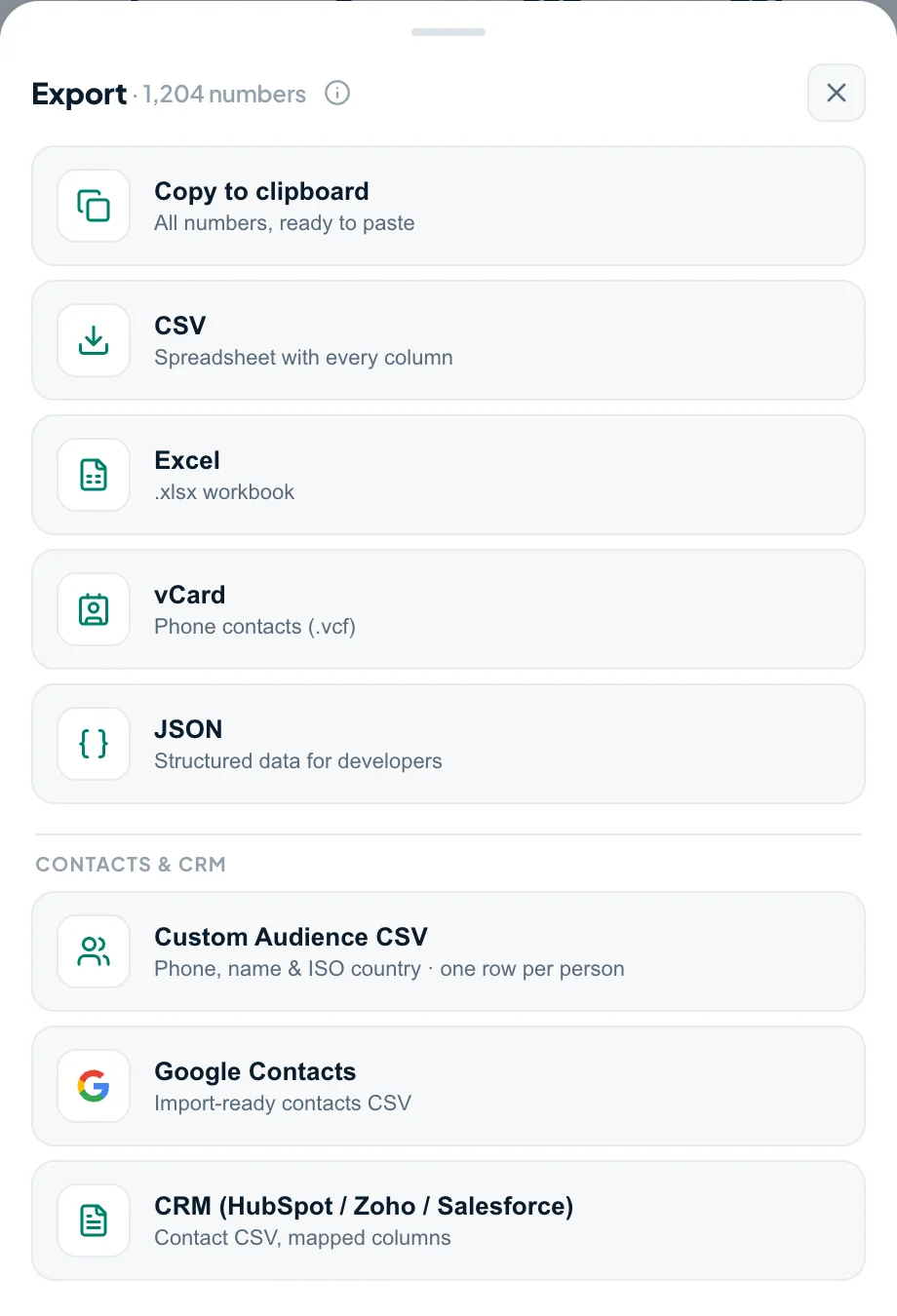
The one to care about is vCard, extension .vcf — the format every phone, every mail client and every contacts app has understood for about thirty years. Open it in Notepad or TextEdit and you can read it with your eyes. Here is one whole record out of the middle of a real backup file:
BEGIN:VCARD
VERSION:3.0
N:Haddad;Amira;;;
FN:Amira Haddad
TEL;TYPE=CELL:+971501234567
NOTE:Contacts | TZ UTC+4 | Carrier Etisalat (est.) | Line Mobile | Lang Arabic
URL:https://wa.me/971501234567
END:VCARD
Because it is plain text, the file has no dependencies. No app has to still exist in 2035 for it to open. It survives being emailed to yourself, dropped in a cloud folder, carried on a USB stick, or copied between an iPhone and an Android without a single conversion step. Nothing about it is locked to Tooly, or to WhatsApp, or to us.
Excel (.xlsx) and CSV are a different kind of copy. They are not worse — they are for a different job. A spreadsheet is the version you read: you open it, search a name, sort by country, notice you have three numbers for the same cousin. What a spreadsheet does not do well is go back into a phone. Phones import .vcf; they do not import .xlsx, and getting a CSV into a contacts app means matching up columns by hand. So the honest answer to "which format" is: take both from the same scan. The .vcf is the restore copy. The spreadsheet is the readable copy.
2. Where to keep the copy
A backup is only a backup once it is somewhere that survives the thing it protects against. This is the rule the whole page hangs on, and it is short:
You do not need a system. You need the file to exist in two places that cannot fail on the same day:
- Email it to yourselfThe fastest one, and the one people actually do. Attach the .vcf, subject line "contacts backup", send. It is now in a mailbox you can reach from any device you might buy next, and it is searchable years later.
- A cloud folderDrive, iCloud, Dropbox, OneDrive — whichever you already pay nothing for. The file is tiny, so it costs you nothing, and a new phone signs into that account before it does anything else.
- Google Contacts itselfImporting the file into Google Contacts makes the backup live: any Android you sign into pulls it down automatically, and iPhone can subscribe to it too.
- A dated copy on a computerKeep the file, rename it with the date — contacts-2026-09.vcf. When you export again in a year, you will be glad the older one is still there rather than overwritten.
- Not: the phone onlyThe device you are backing up cannot also be the place the backup lives. Same for a chat with yourself if that chat is only on that handset.
3. How to get back
This is the part the other guides skip. You have the file; something has happened; here is what you actually do, by situation. Find your row — there is no sequence to follow, and you never need more than one row.
| Your situation | Which file | What to do |
|---|---|---|
| New iPhone in your hand | .vcf | Get the file onto the phone however is easiest — email it to yourself and open the attachment, or AirDrop it from a Mac, or save it into Files/iCloud Drive first. Tap the file, then Add All Contacts. iOS reads vCard natively; nothing has to be installed. |
| New Android in your hand | .vcf | Put the file in the phone's storage or Drive, then open the Contacts app → menu → Import → .vcf file, and pick it. Most Android setups will ask which account to save into — choose your Google account so it syncs onward by itself. |
| You want them back in Google Contacts | .vcf or .csv | Go to contacts.google.com → Import → select the file. Both formats are accepted here. Afterwards run Merge & fix, which folds together the duplicates you inevitably create by importing over an address book that was already half-populated. |
| You just need to look one person up | .xlsx or .csv | Open the spreadsheet in Excel, Numbers or Google Sheets and search the name. Nothing gets installed, nothing gets imported, nothing on any device changes — you read the number off the screen and close the file. This is why the second format is worth having. |
| You are moving to a new number, same phone | .vcf | Nothing to restore — your address book stays where it is. The backup matters here as insurance, because the WhatsApp account change is the moment people discover what they had only ever saved inside one app. |
Two honest caveats. First, importing a .vcf adds contacts; it does not tidy your address book, so expect duplicates if some of those people were already saved — every platform has a merge tool for exactly this. Second, this restores contacts and nothing else. Your conversations and media are WhatsApp's own backup to restore, separately, from your Google or iCloud account.
4. Making the copy
All of the above assumes a file exists. Getting one takes about two minutes with the free Tooly extension, and this is the entire procedure:
- Install Tooly from the Chrome Web Store and sign in at web.whatsapp.com on the phone whose contact list you want to keep.
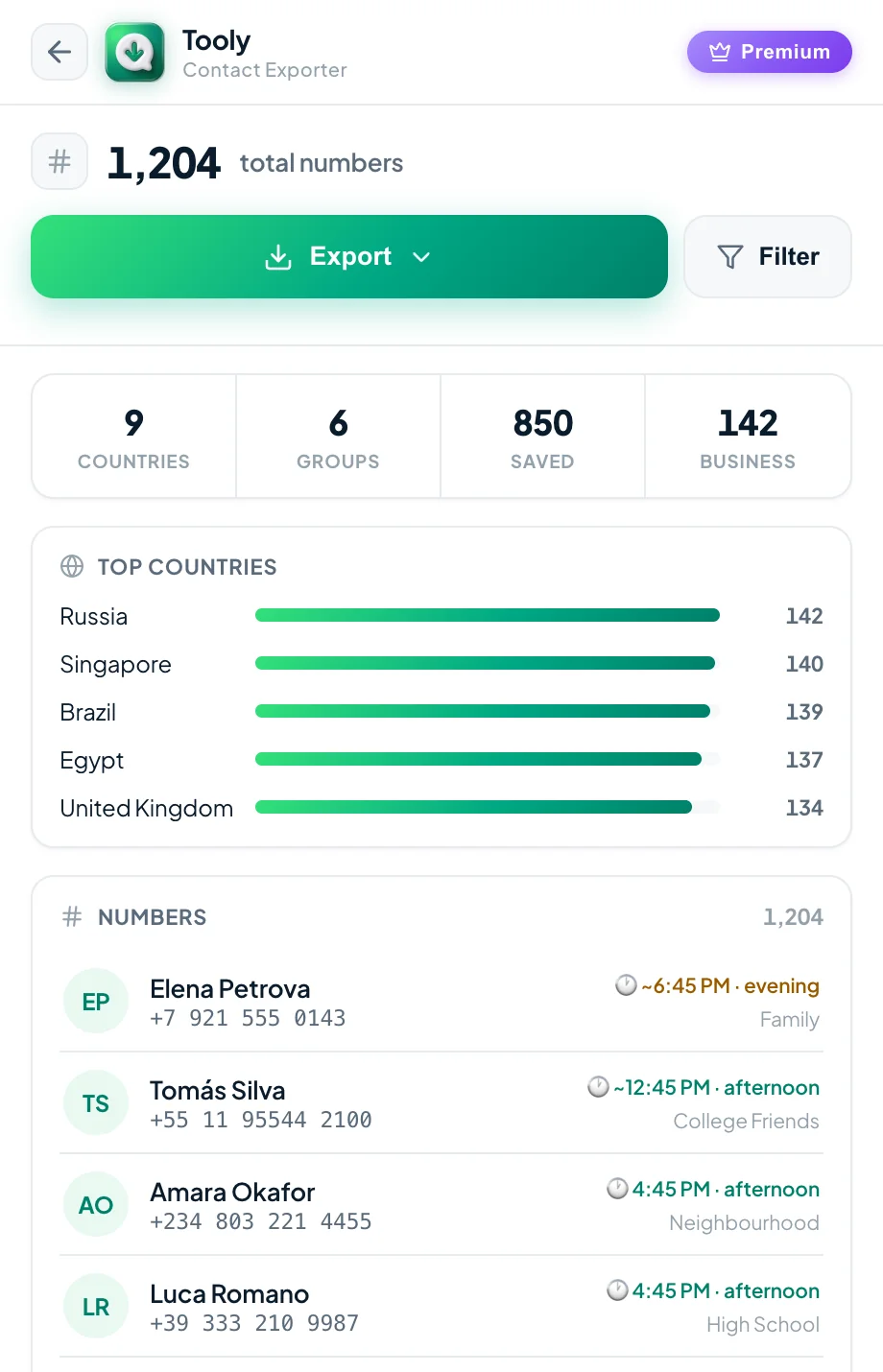
- Open the side panel and press Scan. It reads the signed-in session read-only and builds the list on your own machine — nothing is uploaded, nothing in WhatsApp changes.
- Stay on the Contacts tab so you capture the whole address book rather than the members of one group.
- Export the vCard, then Excel or CSV as well — one scan gives you both — and move a copy off the device today, per section 2.
Worth doing once a year, and worth doing today if you are about to change phone or number. The copy is free and unlimited, so there is no reason to make a partial one.
Frequently asked questions
How do I back up my WhatsApp contacts?
Sign in at web.whatsapp.com, open the free Tooly extension and press Scan, then export the Contacts tab. Save as vCard (.vcf) to drop into a new phone, or Excel/CSV for an archive. Tooly is read-only and on-device, so your list is copied to a file without touching your account.
Is there a way to make a WhatsApp contact backup?
Yes. WhatsApp has no built-in contact export, but Tooly reads your signed-in WhatsApp Web session and writes your names and numbers to a file you keep. One scan gives you vCard, Excel and CSV — free, unlimited and entirely on your device (JSON is a Premium extra), with nothing uploaded to any server.
Does WhatsApp back up my contacts?
WhatsApp's backup covers your chats and media, not an exportable list of contacts and numbers. For a portable copy of the contacts themselves, export them with a tool like Tooly.
How do I restore the backup to a new phone?
Export to vCard (.vcf), then open or import that file on your new phone or into Google Contacts — the numbers are added to your address book. If the new handset only reads contacts from the SIM, copy them onto the SIM card after the import.
Is backing up my WhatsApp contacts free?
Yes — Tooly backs up your full list for free, with no limit and no account required.
Where does the backup go?
Straight to your own computer. Tooly is read-only and never uploads your contacts to any server.
Keep a copy you'll be glad you have
A vCard for your next phone or a spreadsheet for the archive — saved before you need it. Free, no account.
Add Tooly to Chrome — free